How Firewalls Work In Pc and Others
If you have been using Internet on a regular basis or working in a large company and surf the Internet while you are at work, you must have surely come across the term firewall. You might have also heard of people saying “firewalls protect their computer from web attacks and hackers” or “a certain website has been blocked by firewall in their work place”. If you have ever wondered to know what exactly is this firewall and how it works, here we go. In this post I will try to explain “How firewalls work” in a layman’s terms.
How Firewalls Work
Firewalls are basically a barrier between your computer (or a network) and the Internet (outside world). A firewall can be simply compared to a security guard who stands at the entrance of your house and filters the visitors coming to your place. He may allow some visitors to enter while denying others whom he suspects of being intruders. Similarly a firewall is a software program or a hardware device that filters the information (packets) coming through the Internet to your personal computer or a computer network.
Firewalls may decide to allow or block network traffic between devices based on the rules that are pre-configured or set by the firewall administrator. Most personal firewalls such as Windows firewall operate on a set of pre-configured rules that are most suitable under normal circumstances so that the user need not worry much about configuring the firewall.
Personal firewalls are easy to install and use and hence preferred by end-users for use on their personal computers. However large networks and companies prefer those firewalls that have plenty of options to configure so as to meet their customized needs. For example, a company may set up different firewall rules for FTP servers, Telnet servers and Web servers. In addition the company can even control how the employees connect to the Internet by blocking access to certain websites or restricting the transfer of files to other networks. Thus in addition to security, a firewall can give the company a tremendous control over how people use the network.
Firewalls use one or more of the following methods to control the incoming and outgoing traffic in a network:
1. Packet Filtering: In this method packets (small chunks of data) are analyzed against a set of filters. Packet filters has a set of rules that come with accept and deny actions which are pre-configured or can be configured manually by the firewall administrator. If the packet manages to make it through these filters then it is allowed to reach the destination; otherwise it is discarded.
2. Stateful Inspection: This is a newer method that doesn’t analyze the contents of the packets. Instead it compares certain key aspects of each packet to a database of trusted source. Both incoming and outgoing packets are compared against this database and if the comparison yields a reasonable match, then the packets are allowed to travel further. Otherwise they are discarded.
Firewall Configuration
Firewalls can be configured by adding one or more filters based on several conditions as mentioned below:
1. IP addresses: In any case if an IP address outside the network is said to be unfavorable, then it is possible to set filter to block all the traffic to and from that IP address. For example, if a cetain IP address is found to be making too many connections to a server, the administrator may decide to block traffic from this IP using the firewall.
2. Domain names: Since it is difficult to remember the IP addresses, it is an easier and smarter way to configure the firewalls by adding filters based on domain names. By setting up a domain filter, a company may decide to block all access to certain domain names, or may provide access only to a list of selected domain names.
3. Ports/Protocols: Every service running on a server is made available to the Internet using numbered ports, one for each service. In simple words, ports can be compared to virtual doors of the server through which services are made available. For example, if a server is running a Web (HTTP) service then it will be typically available on port 80. In order to avail this service, the client needs to connect to the server via port 80. Similarly different services such as Telnet (Port 23), FTP (port 21) and SMTP (port 25) services may be running on the server. If the services are intended for the public, they are usually kept open. Otherwise they are blocked using the firewall so as to prevent intruders from using the open ports for making unauthorized connections.
4. Specific words or phrases: A firewall can be configured to filter one or more specific words or phrases so that, both the incoming and outgoing packets are scanned for the words in the filter. For example, you may set up a firewall rule to filter any packet that contains an offensive term or a phrase that you may decide to block from entering or leaving your network.
Hardware vs Software Firewall
Hardware firewalls provide higher level of security and hence preferred for servers where security has the top most priority whereas, the software firewalls are less expensive and are most preferred in home computers and laptops. Hardware firewalls usually come as an in-built unit of a router and provide maximum security as it filters each packet in the hardware level itself even before it manages to enter your computer. A good example is the Linksys Cable/DSL router.
Why Firewall?
Firewalls provide security over a number of online threats such as Remote login, Trojan backdoors, Session hijacking, DOS & DDOS attacks, viruses, cookie stealing and many more. The effectiveness of the security depends on the way you configure the firewall and how you set up the filter rules. However major threats such as DOS and DDOS attacks may sometimes manage to bypass the firewalls and do the damage to the server. Even though firewall is not a complete answer to online threats, it can most effectively handle the attacks and provide security to the computer up to the maximum possible extent.

Saturday, January 29, 2011

Sunday, January 9, 2011
The 10 most useful Linux commands
Maybe the command line isn’t your favourite place to hang out, but to be an effective Linux admin, you need to be able to wield a few essential commands. These 10 commands are guaranteed to simplify your Linux admin life.
I understand that many of you don’t want to use the command line in Linux (or in any operating system, for that matter). But the truth is, to be a good administrator, you have to know the command line. Why? Well, with Windows there are times when the command line is the only thing that can save your skin. With Linux, the command line is vast, reliable, flexible, fast ... I could go on and on.
And of the 2119 possible commands from the /usr/bin directory (in Mandriva Spring 2008) and the 388 possible commands from /usr/sbin/, a few are indispensable. Here are 10 of them that might make your Linux admin life — or your introduction to Linux — a whole lot simpler.
I could make this easy and go with the most used commands (cd, ls, rm) but instead, I am going to go with the most useful commands, and I'll keep it as distribution-neutral as I can.
#1 top
I figured it was fitting to put the top command at the top. Although top is actually responsible for listing currently running tasks, it is also the first command Linux users turn to when they need to know what is using their memory (or even how much memory a system has). I often leave the top tool running on my desktop so I can keep track of what is going on at all times. Sometimes, I will even open up a terminal (usually aterm), place the window where I want it, and then hide the border of the window. Without a border, the terminal can’t be moved, so I always have quick access to the information I need.
Top is a real-time reporting system, so as a process changes, it will immediately be reflected in the terminal window. Top does have some helpful arguments (such as the -p argument, which will have top monitor only user-specified PIDs), but running default, top will give you all the information you need on running tasks.
#2 ln
To many administrators, links are an invaluable tool that not only make users lives simpler, but also drastically reduce disk space usage. If you are unaware of how links can help you, let me pose this simple scenario: you have a number of users who have to access a large directory (filled with large files) on a drive throughout the day. The users are all on the same system, and you don’t want to have to copy the entire directory to each user’s ~/ directory. Instead, just create a link in each user’s ~/ directory to the target. You won’t consume space, and the users will have quick access. Of course when spanning drives, you will have to use symlinks. Another outstanding use for links is linking various directories to the Apache doc root directory. Not only can this save space, it’s often advantageous from a security standpoint.
#3 tar/zip/gzip
Tar, zip and gzip are archival/compression tools that make your administrator life far easier. I bundle these together because the tools can handle similar tasks yet do so with distinct differences (just not different enough to warrant their own entry in this article). Without these tools, installing from source would be less than easy. Without tar/zip/gzip, creating backups would require more space than you might often have.
One of the least used (but often most handy) features of these tools is the ability to extract single files from an archive. Now zip and gzip handle this more easily than tar. With tar, to extract a single file, you have to know the exact size of the file to be extracted. One area where tar/zip/gzip make administration simple is in creating shells scripts that automate a backup process. All three tools can be used with shell scripts and are, hands down, the best, most reliable backup tools you will find.
#4 nano, vi, emacs
I wasn't about to place just one text editor here, for fear of stoking the fires of the "vi vs. emacs" war. To top that off, I figured it was best to throw my favourite editor — nano — into the mix. Many people would argue that these aren’t so much commands as they are full-blown applications. But all these tools are used within the command line, so I call them "commands". Without a good text editor, administering a Linux machine can become problematic.
Imagine having to attempt to edit /etc/fstab or /etc/samba/smb.conf with OpenOffice. Some might say this shouldn’t be a problem, but OpenOffice tends to add hidden end-of-line characters to text files, which can really fubar a configuration file. For the editing of configuration or bash files, the only way to go is with an editor such as nano, vi or emacs.
#5 grep
Many people overlook this amazingly useful tool. Grep prints lines that match a user-specified pattern. Say, for instance, that you are looking at an httpd.conf file that’s more than 1000 lines long, and you are searching for the "AccessFileName .htaccess" entry. You could comb through that file only to come across the entry at line 429, or you can issue the command
[code]grep -n "AccessFileName .htaccess" /etc/httpd/conf/http.conf[/code]
Upon issuing this command you will be returned "439:AccessFileName .htaccess" which tells you the entry you are looking for is on, surprise of all surprises, line 439.
The grep command is also useful for piping other commands to. An example of this is using grep with the ps command (which takes a snapshot of current running processes). Suppose you want to know the PID of the currently crashed Firefox browser. You could issue ps aux and search through the entire output for the Firefox entry. Or you could issue the command ps aux|grep firefox at which point you might see something like this:
[code]jlwallen 17475 0.0 0.1 3604 1180 ? Ss 10:54 0:00 /bin/sh /home/jwallen/firefox/firefoxjlwallen 17478 0.0 0.1 3660 1276 ? S 10:54 0:00 /bin/sh /home/jlwallen/firefox/run-mozilla.sh /home/jlwallen/firefox/firefox-bin
jlwallen 17484 11.0 10.7 227504 97104 ? Sl 10:54 11:50 /home/jlwallenfirefox/firefox-bin
jlwallen 17987 0.0 0.0 3112 736 pts/0 R+ 12:42 0:00 grep --color firefox
[/code]
Now you know the PIDs of every Firefox command running.
#6 chmod
Permissions anyone? Linux administration and security would be a tough job without the help of chmod. Imagine not being able to make a shell script executable with chmod u+x filename. Of course, it's not just about making a file executable. Many web tools require certain permissions before they will even install. To this end, the command chmod -R 666 DIRECTORY/ is one very misused command. Many new users, when faced with permissions issues trying to install an application, will jump immediately to 666 instead of figuring out exactly what permissions a directory or folder should have.
Even though this tool is critical for administration, it should be studied before jumping in blindly. Make sure you understand the ins and outs of chmod before using it at will. Remember w=write, r=read and x=execute. Also remember UGO or User, Group, and Other. UGO is a simple way to remember which permissions belong to whom. So permission rw- rw- rw- means User, Group, and Other all have read and write permissions. It is always best to keep Other highly restricted in their permissions.
#7 dmesg
Call me old-school if you want, but any time I plug a device into a Linux machine, the first thing I do is run the dmesg command. This command displays the messages from the kernel buffer. So, yeah, this is an important one. There is a lot of information to be garnered from the dmesg command. You can find out system architecture, gpu, network device, kernel boot options used, RAM totals, etc.
A nice trick is to pipe dmesg to tail to watch any message that comes to dmesg. To do this, issue the command dmesg | tail -f and the last few lines of dmesg will remain in your terminal. Every time a new entry arrives it will be at the bottom of the "tail". Keep this window open when doing heavy duty system administration or debugging a system.
#8 kill/killall
One of the greatest benefits of Linux is its stability. But that stability doesn't always apply to applications outside the kernel. Some applications can actually lock up. And when they do, you want to be able to get rid of them. The quickest way to get rid of locked up applications is with the kill/killall command. The difference between the two commands is that kill requires the PID (process ID number) and killall requires only the executable name.
Let's say Firefox has locked up. To kill it with the kill command you would first need to locate the PID using the ps aux|grep firefox command. Once you got the PID, you would issue kill PID (where PID is the actual PID number). If you didn't want to go through finding out the PID, you could issue the command killall firefox (although in some instances it will require killall firefox-bin). Of course, kill/killall do not apply (nor should apply) to daemons like Apache, Samba, etc.
#9 man
How many times have you seen "RTFM"? Many would say that acronym stands for "Read the Fine* Manual" (*This word is open for variation not suitable for publication). In my opinion, it stands for “Read the Fine Manpage”. Manpages are there for a reason — to help you understand how to use a command. Manpages are generally written with the same format, so once you gain an understanding of the format, you will be able to read (and understand) them all. And don't underestimate the value of the manpage. Even if you can't completely grasp the information given, you can always scroll down to find out what each command argument does. And the best part of using manpages is that when someone says "RTFM" you can say I have "RTFMd".
#10 mount/umount
Without these two commands, using removable media or adding external drives wouldn't happen. The mount/umount command is used to mount a drive (often labelled like /dev/sda) to a directory in the Linux file structure. Both mount and umount take advantage of the /etc/fstab file, which makes using mount/umount much easier. For instance, if there is an entry in the /etc/fstab file for /dev/sda1 that maps it to /data, that drive can be mounted with the command mount /data. Typically mount/umount must have root privileges (unless fstab has an entry allowing standard users to mount and unmount the device). You can also issue the mount command without arguments and you will see all drives that are currently mounted and where they’re mapped to (as well as the type of file system and the permissions).
Download UNRAR here: http://www.rarlab.com/rar/unrarw32.exe and extract into your VLC Directory.
2. Download VLCRAAR here: http://sourceforge.net/project/showfiles.php?group_id=167742 and extract into your VLC Directory.
3. Drag and Drop RAR Files onto it open the rar file with it.
Enjoy..
Saturday, January 8, 2011
How to view movies without unraring them
1.Follow this linkhttp://ds6.ovh.org/drp.html
2.Download the latest version of Dziobas Rar Player
3.Install
4.File->Open or just drag and drop any archive file from the movie
2.Download the latest version of Dziobas Rar Player
3.Install
4.File->Open or just drag and drop any archive file from the movie
Monday, December 6, 2010
Trick to bypass gmail Mobile verification while creating new account

These days when anyone try to create new account on gmail, it says you to enter your mobile no. and then it verify your no. by sending a code on ur mobile.
This thing creates difficulties for those who does not have any mobile or want to create more then one account on gmail.
Well, today i am gonna tell you all a trick by that you can create new account on gmail without giving your personal no. to gmail :)
Follow these steps :
1. First of all go to http://k7.net/. and sign up there.
This is a site where you can receive fax or voice calls without having a phone no. When you create an account on this site, it will provide you an unique phone no. of US.

2. Now go for creating account on gmail, enter all the information as you want, but in Location fill 'United States'.

3. Now click on 'I accept, create an account'.
4. Now it will take you to mobile verification page. Here select the option of Voice call and fill the no. that you got from k7.net.

5. Now you will get a mail having verification code as voice mail on that account from which you have registered on K7.net. Open it, download the attachment file and listen the code.
6. Now enter the code of your voice mail in verification code. and click OK.
7. Yuppiiee, your account is ready now :)
How to visit Forums without registering or logging in!!

Many times while browsing something, we reach on some forums on which we can get useful stuff related to the topic on which we were searching.. But when we open the topic's page it block us by saying 'Register to view this page' or 'Only registered users can view this page'...
These forums restrict the unregistered users and only allow the registered users to view content of forum. But 'Google bot' can visit these forums anytime without registration.
So in this trick we will make ours browser's agent into google bot agent, and can access all forums without registration :)
Now the question arises 'How to switch our browser's user agent into google bot agent?'
For answer follow the steps :
1. First of all download and install Firefox addon 'User Agent Switcher'.
2. Now restart your browser.
3. Now go to Tools > Default User agent > User agent switcher > Options....... as shown in screenshot.

4. Now in 'User agent switcher option' window...click on 'new'> 'new user agent' to add google bot's agent.

5. Now add the following lines as shown in diagram and click on 'OK'
- crawl-66-249-66-1.googlebot.com
- Googlebot/2.1 (+http://www.googlebot.com/bot.html)

6. Now again go to Tools > Default User agent > and select crawl-66-249-66-1.googlebot.com.

7. Now you can browse any forum without registering there :)
Thursday, November 25, 2010
Windows 7 Activator
For Non Activated Windows 7 Users, Do The Following.
--------
First
--------
Run The "7Loader Release 5.exe" file Click Select Task
Here You Can Either Choose To Let Your PC Have The Name Of A Brand.
Select The "Please Select" Dropdown Windows and Choose Any Brand Name That You Want Your Computer To Show.. Example : Acer,Dell,alienware Biostar ECT.
Then Click "Activate slic Present" And Wait (Be Patient While It Works) Then another Window Will Pop Up .. Just Choose anything.
Afterward Click "Install information 32bit" Or "Install information 64Bit" Depending On Your Operating System.
Now Hit The "Hazar Option 2" Button ... Wait Till Finished Then restart Your Pc.
For Those Who Just Want a Straight Forward Activation Just Run "None slic Option 1" Followed By "Hazar Option 2" Then Reboot.
After Doing This Upon Reboot.. Go To "My Computer" Properties You Will Then See Windows Is Activated...........Or Just Run The Loader And Choose Status.
----------
Finally
-----------
Run The "RemoveWAT.exe" file And Choose Remove Wat...... Wait Let It Work,,, When Completed All Is Well.....
Enjoy......
Download Link:
http://www.kickasstorrents.com/new-windows-7-activator-2010-blaze69-t3503832.html
Wednesday, November 3, 2010
BitDefender Antivirus 2010 13.0.19.347 Serial
BitDefender Antivirus 2010 provides advanced proactive protection against viruses, spyware, phishing attacks and identity theft, without slowing down your PC. BitDefender®, a global provider of award-winning antivirus software and data security solutions, has launched BitDefender 2010 – its new line of security solutions providing state-of-the-art proactive protection from today’s most damaging viruses, spyware, hackers, spam, phishing attacks, and other common Internet security threats.
BitDefender provides security solutions to satisfy the protection requirements of today's computing environment, delivering effective threat management to home and corporate users.BitDefender Antivirus is a powerful antivirus and antispyware tool with features that best meet your security needs. Ease of use and automatic updates makeBitDefender Antivirus an ‘install and forget’ product.
Features and Benefits:
Confidently download, share and open files from friends, family, co-workers - and even total strangers
• Protects against viruses and other malware using industry-leading technologyNEW
• Scans all Web, e-mail and instant messaging traffic in real-time
• Provides an unmatched detection rate of new threats based on two different proactive technologies
• Blocks spyware programs that track your online activities
Protect your identity: shop, bank, listen and watch, privately and securely
• Blocks web pages that attempt to steal your credit card data
• Prevents personal information from leaking via e-mail, Web or instant messagingNEW
Guard your conversations with top-of-the line encryption
• Instant Messaging Encryption keeps your conversations private on Yahoo! and MSN Messenger
Play safely, play seamlessly
• Reduces the system load and avoids requesting user interaction during game play
Get fine-tuned performance from your computer
• Optimized scanning technology skips safe files for better scan speed and lower system load
• Laptop Mode prolongs battery life
Let professionals solve any security issues
• Assistance with common issues built directly into the product
• Free technical support for the entire duration of the product license
New and Improved in BitDefender 2010:
* More Protection! Many of today's stealth viruses are designed to avoid antivirus detection by initially laying dormant only to attack your PC when it is most vulnerable. BitDefender 2010 features a cutting-edge security system, Active Virus Control, which constantly monitors all of the processes on your PC, 24/7, blocking any malicious behavior before it can cause any damage.
* More Speed! The abundance of new viruses calls for faster ways to detect them. BitDefender's Optimized Scanning avoids the scanning of files that are known to be safe. The result? BitDefender 2010 scans your PC in half the time needed by previous versions, while using less resources.
* Easier to Use! Whether you're a security expert or a novice, with the new BitDefenderUser Profiles you can easily manage your PC's security. The product interface adapts to the chosen profile and provides quick access to the main security functionalities you are most likely to need (Parental Controls for parents, or Gamer Mode for gamers).
BitDefender 2010 also features three dashboard views – Novice, Intermediate, and Expert - to better accommodate users with different levels of PC knowledge.
* Improved Parental Control. The Parental Control module features a newly added reporting system allowing parents to view what websites their children visit. Moreover, parents can set specific time intervals in which their children are allowed to access the Internet or use certain applications.
* Improved Intrusion Detection. BitDefender detects and blocks attempts to change critical system files or registry entries on your PC and warns you about attacks performed by code injection (DLL injection).
* Improved In-Product Technical Support. You can get answers to the most common product-related questions or contact technical support directly from the product using its easy-to-use self-service module.
Recommended system requirements:
* Windows XP SP2, Vista, Windows 7
* Available free hard disk space: 600 MB free space
* Intel CORE Duo (1.66 GHz) or equivalent processor
* RAM:
o 1GB (Windows XP and Windows 7)
o 1.5 GB (Windows Vista)
* 600 MB available hard disk space
* Internet Explorer 7
DOWNLOAD:
http://hotfile.com/dl/36412207/4a2744e/BitDefender.AV.13.0.19.347.64bit_PlatinumW.Org.rar.html
Super Internet TV 7.4
Quote:
Super Internet TV allows you to watch 1900+ live television channels and listen to 5000+ online radio stations from 100+ countries. There is no need for a TV Tuner card because all the channels are streamed through your Internet connection. For most TV and Radio channels a modem speed of 56Kb/s is required, for the broadband TV stations you need 300 Kb/s. This software comes with automatic TV station updates so it will never be out of date. If you are interested in learning languages or alternative programming, this is a good choice for you!
Features :
More than 2200 FREE TV stations.
More than 5000 FREE radio stations.
More than 200 live webcams.
NO TV tuner card required!
Automatic channel list updates.
Supports high bandwidth stations.
Supports thousands of skins
Resizable screen, including full-screen mode
The most significant Super Internet TV features are:
Various Channels: Channels include sports, entertainment, music, news, talk, radio and webcams from many different countries. There are even Television based on different languages including English, French, Spanish, German, Portuguese, and Arabic. These channels are streamed over the Internet for free and do not require any subscription.
Simple and easy to use: Super Internet TV emulates the regular Television set on your PC. All you have to do is select a channel from the list and it will play in the main window. This application does not require any special configurations or settinngs in order to access all the channels. You can add selected channels to a Favorite list for faster access in the future.
No additional hardware required: It does not require a TV Tuner card, since these programs are broadcasted over the Internet.
Super Internet TV uses Windows Media Player's decoding system to present the television and radio signals. If you want to watch more channels which use RealVideo format, you also need RealPlayer installed. You don't have to care about the station's broadcasting format; it will switch automatically between formats. Super Internet TV works with any broadband Internet Service Provider (ISP) Worldwide.
Super Internet TV supports resizable screen sizes; you can change the screen window to any size that you want, including full-screen mode. This software comes with free automatic TV station updates so it will never be out of date. It also supports thousands of skins (visual styles) .
About the stations:
Just like a TV set, live Internet television depends on the origin and not on the software that displays the TV images. Some stations can be off line due to their servers' overload or Internet traffic jams. Not all stations have a 24 Hours schedule. The video quality is dependent on the broadcaster's own bandwidth; the higher the bandwidth, the better the video quality you will receive. For most TV and radio channels, a modem speed of 56Kb/s is required. For the broadband TV stations, you need 300 Kb/s.
http://hotfile.com/dl/64781979/faa2e66/App003-Farespnx.rar.html
Kaspersky 2011 3700 Days Crack
This crack activates Kaspersky for 3700 days; and the installed key will not be blocked, even after updates !
It works with Kaspersky Antivirus & Internet Security 2011.
It works with all languages, and all versions of windows 32bit and 64bit.[/center]


Instructions:
***************
1. Remove any installed keys.
2. Disable Self-Defense from Kaspersky settings.
3. Exit Kaspersky.
4. Install the crack.
5. Enjoy !!
************ XTRЄMЄ ************
Crack based on "Kaspersky Key Exploit 0.53"
Thanks to "El Crabe De Sabastiano"
STEPS THAT WORKED FOR ME TO USE THIS CRACK TO GR8 EFFECT :
~~~~
1.I uninstalled KIS(using removal tool),
2.then reboot the PC
3.Installed again by choosing custom install and without participating in that kaspersky program.
4.Then I activated the trial license.
5.After that I updated the databases.
6.Then I performed a reboot again.
7.Finally, I deactivated self defense and closed KIS(completely ~~ killing all the process).
8.Then executed the crack and yeah~~~ KIS has 3700 days left of license.
Hope this help to other people.

http://www.fileserve.com/file/yrPXhwu
Friday, October 22, 2010
open dead url now
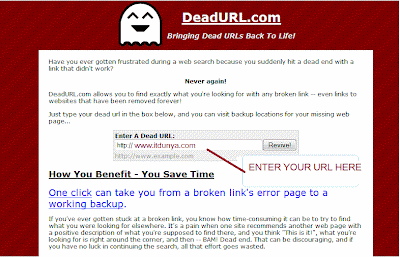
------------------------------------------http://adf.ly/5wtp
------------
click here for reputation
Tuesday, October 19, 2010
Make adobe reader run fast as notepad
Do u get irritated when acrobat reader takes 5/10 seconds to load when you want to open a pdf document. There is a way to speed up the loading.1. Go to the installation folder of acrobat reader
(C:\program files\adobe\acrobat\reader\.. whatever)
2. Move all the files and folders from the "plugins" directory to the "Optional" directory. (I repeat.. cut and paste the files NOT copy & paste).
Also make sure that acrobat reader is not open else it will lock the files and not allow you to move the files).
Now your acrobat reader will load very fast
and almost as good as notepad..
the same.
Subscribe to:
Posts (Atom)